Introduction to Python

University at Buffalo

Online

November 3, 5, 10, 12, 2026

3:00 pm - 4:30 pm

Instructors: Scott Peterson

Helpers: Gandhar Sidhaye

General Information

Registration: Please register through Zoom to attend the workshop.

Individual workshop descriptions can be found in the schedule below and on the registration page.

Register for the workshop

The Carpentries

The Carpentries project comprises the Data Carpentry, High-Performance Computing Carpentry, Library Carpentry, and Software Carpentry communities of Instructors, Trainers, Maintainers, helpers, and supporters who share a mission to teach foundational computational and data science skills to researchers.

Library Carpentry is made by people working in library- and information-related roles to help you:

  • automate repetitive, boring, error-prone tasks
  • create, maintain and analyze sustainable and reusable data
  • work effectively with IT and systems colleagues
  • better understand the use of software in research
  • and much more...

Library Carpentry introduces you to the fundamentals of computing and provides you with a platform for further self-directed learning.

Carpentries Clippings

Want to learn more and stay engaged with The Carpentries?

Carpentries Clippings is The Carpentries' monthly newsletter, where we share community news, community job postings, and more.

Code of Conduct

Everyone who participates in Carpentries activities is required to conform to the Code of Conduct, which also outlines how to report an incident if needed.

This is a pilot workshop, testing out a lesson that is still under development. The lesson authors would appreciate any feedback you can give them about the lesson content and suggestions for how it could be further improved.

Workshop Logistics
Who

The course is aimed at SUNY students and researchers who are interested in learning the basics of programming and Python. You don't need to have any previous knowledge of programming or Python to take the workshop.

The is an introduction to Python spread out over four 1.5 hour days at the University at Buffalo for the Fall 2026 semester that is open to the public.

Where

This training will take place online. The instructors will provide you with the information you will need to connect to this meeting.

When

November 3, 5, 10, 12, 2026; 3:00 pm - 4:30 pm Add to your Google Calendar.

Requirements

Participants must have access to a computer with a Mac, Linux, or Windows operating system (not a tablet, Chromebook, etc.) that they have administrative privileges on. They should have a few specific software packages installed (listed below).

Accessibility

We are committed to making this workshop accessible to everybody.

We are dedicated to providing a positive and accessible learning environment for all. We do not require participants to provide documentation of disabilities or disclose any unnecessary personal information. However, we do want to help create an inclusive, accessible experience for all participants. We encourage you to share any information that would be helpful to make your Carpentries experience accessible. To request accessibility support for this workshop, please fill out the accessibility support request form. If you have questions or need assistance with the accessibility support form please email us.

Glosario is a multilingual glossary for computing and data science terms. The glossary helps learners attend workshops and use our lessons to make sense of computational and programming jargon written in English by offering it in their native language. Translating data science terms also provides a teaching tool for Carpentries Instructors to reduce barriers for their learners.

Workshop Recordings

Carpentries workshops are designed to be interactive rather than lecture-based, with lessons that build upon one another. To foster a positive online learning environment, we strongly recommend that participants join in real time. As a result, workshop recordings are not recommended and may not be available to learners.

Contact

Please email sp277@buffalo.edu for more information.

Workshop FAQ

For answers to frequently asked questions about workshops, refer to the Carpentries Workshop FAQ.

Collaborative Notes

We will use this collaborative document for chatting, taking notes, and sharing URLs and bits of code.

Surveys
Pre-Workshop Survey

Please fill out this survey before attending the workshop.

Fill Out the Pre-Workshop Survey
Post-Workshop Survey

Please fill out this survey before you leave the workshop.

Fill Out the Post-Workshop Survey
Schedule
Novemeber 3
Fundamentals and Variables

This is the first part of a four part Introduction to Python series. In this workshop you will learn Environment Setup: Launching JupyterLab, managing notebook cells, and using Markdown for documentation; Variables & Types: Storing library data, working with numbers and strings; Lists & Built-in Functions: Working with ordered collections (e.g., lists of branch names), accessing built-in help, and interpreting error messages.

Before Starting Pre-workshop survey
03:00PM Fundamentals and Variables
04:30PM Post-workshop survey
November 5
Logic, Loops, and Automation

This is the second part of a four part Introduction to Python series. In the workshop you will learn For Loops & Accumulator Pattern: Iterating over collections to clean records; Conditionals: Using if/elif/else logic to filter missing data or specific library item types; Batch Processing: Using glob to iterate through directory folders and open multiple dataset files.

Before Starting Pre-workshop survey
03:00PM Logic, Loops, and Automation
04:30PM Post-workshop survey
November 10
Data Transformation of Tabular Data with Pandas

This is the third part of a four part Introduction to Python series. In the workshop you will learn Data Loading & Navigation: Importing spreadsheet files (like CSVs), viewing and exploring datasets, and using precise coordinates to pinpoint specific rows or columns; Creating Reusable Automations: Writing custom steps to bundle together repetitive data cleaning and organizing tasks, saving time and preventing human error; Data Structuring & Cleaning: Transforming cluttered, wide-format tables into clean, standardized layouts using tools that merge rows, group related information together, and correctly format dates.

Before Starting Pre-workshop survey
03:00PM Data Transformation of Tabular Data with Pandas
04:30PM Post-workshop survey
November 12
Data Visualization with Plotly

This is the fourth part of a four part Introduction to Python series. In the workshop you will learn Data visualization using Pandas Base Plots; Data visualization using Plotly, a Python library used to create interactive, web-based charts and graphs.

Before Starting Pre-workshop survey
03:00PM Data Visualization with Plotly
04:30PM Post-workshop survey
The lesson taught in this workshop is being piloted and a precise schedule is yet to be established. The workshop will include regular breaks. Please contact the workshop organisers if you would like more information about the planned schedule.

Setup

To participate in a Library Carpentry workshop, you will need access to software as described below. In addition, you will need an up-to-date web browser.

We maintain a list of common issues that occur during installation as a reference for instructors that may be useful on the Configuration Problems and Solutions wiki page.

Install the videoconferencing client

If you haven't used Zoom before, go to the official website to download and install the Zoom client for your computer.

Set up your workspace

Like other Carpentries workshops, you will be learning by "coding along" with the Instructors. To do this, you will need to have both the window for the tool you will be learning about (a terminal, RStudio, your web browser, etc..) and the window for the Zoom video conference client open. In order to see both at once, we recommend using one of the following set up options:

This blog post includes detailed information on how to set up your screen to follow along during the workshop.

Python

Python is a popular language for research computing, and great for general-purpose programming as well. Installing all of its research packages individually can be a bit difficult, so we recommend Conda-forge, an all-in-one installer.

Regardless of how you choose to install it, please install the most recent Python version available by going to the latest download site and scrolling to the Files section to find the download for your operating system.

We will teach Python using the Jupyter Notebook, a programming environment that runs in a web browser (Jupyter Notebook will be installed by Miniforge). For this to work you will need a reasonably up-to-date browser. The current versions of the Chrome, Safari and Firefox browsers are all supported (some older browsers, including Internet Explorer version 9 and below, are not).

Challenges with OneDrive

OneDrive is used by many institutions to sync your user folder (C:\Users\[your-username]\) within an organisation. It may cause issues with the installation of the Carpentries environment.
If you have OneDrive set up, please ensure that you can access your C:\Users\[your-username]\Downloads folder:

  • Open File Explorer
  • Right click on the "Downloads" folder in the left-hand navigation pane
  • Select "Properties"
  • In the "Location" tab, ensure that the path is set to C:\Users\[your-username]\Downloads
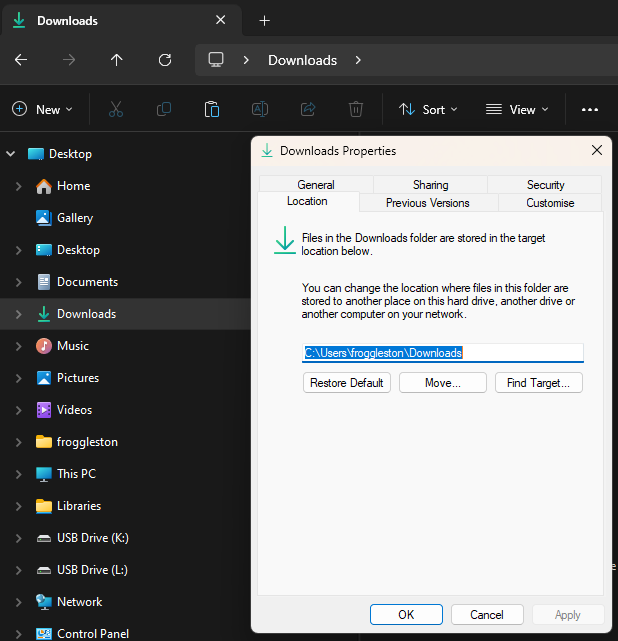
  • OneDrive Downloads Location

If you encounter problems, please contact your IT support team and workshop organisers for assistance before the workshop.
  1. Open https://conda-forge.org/download/ with your web browser.
  2. Download the Miniforge for Windows installer
  3. Double click on the downloaded file (Something like, Minforge3-Windows-x86_64.exe)
    • If you get a "Windows protected your PC" pop-up from Microsoft Defender SmartScreen, click on "More info" and select "Run anyway"
  4. Follow through the installer using all of the defaults for installation except make sure to check Add Miniforge3 to my PATH environment variable.
  5. Then:
    • EITHER:
      • Right click the following link and click "Save link as...": Carpentries environment file
      • Save the file to your C:\Users\[your-username]\Downloads folder.
      • Make sure that the filename is carpentries_environment.yml and the "Save as type" option is set to YML file (*.yml)
        The following steps requires using the Miniforge Prompt command line. If you aren't comfortable doing the installation yourself stop here and request help at the workshop.
    • OR:
      • Open Git Bash
      • cd ~/Downloads
      • curl -L -O https://raw.githubusercontent.com/carpentries/workshop-template/refs/heads/gh-pages/data/carpentries_environment.yml
  6. Open your Start Menu from your taskbar, or use the Win Windows key.
  7. Search for the application "Miniforge Prompt", and click the icon to open it.
    • Once open, ensure the prompt shows your C:\Users\[your-username] folder. If it does, continue to Step 8 below:
      Miniforge Prompt [your-username] as froggleston
      In this case, the prompt shows C:\Users\froggleston. Your username will be different!
    • If it doesn't:
      • Find your username by typing whoami and press Enter
      • Your username will be shown as [machine-name]\[your-username]. You only need the [your-username] part after the slash, i.e. froggleston in this example.
      • Type cd C:\Users\[your-username] and press Enter

      Miniforge Prompt whoami
      • Continue to Step 8 below
    • If you get stuck, please contact your workshop organisers to get assistance before the workshop starts.
  8. In the Miniforge Prompt window, run the following commands:
    • Type cd Downloads and press Enter
    • Type conda env create -f carpentries_environment.yml and press Enter
  9. The installation may take a few minutes depending on your internet connection speed. Once complete, you can close the Miniforge Prompt window.
  1. Open https://conda-forge.org/download/ with your web browser.
  2. Download the appropriate Miniforge installer for macOS
    The following steps require using the shell. If you aren't comfortable doing the installation yourself stop here and request help at the workshop.
  3. Open a terminal window and navigate to the directory where the executable is downloaded (e.g., cd ~/Downloads).
  4. Type
    bash Miniforge3-
    and then press Tab to autocomplete the full file name. The name of file you just downloaded should appear. Press Enter (or Return depending on your keyboard).
  5. Follow the text-only prompts in the terminal. To move through the text, press Spacebar.
    • Type yes and press Enter (or Return) to approve the license.
    • Press Enter (or Return) to approve the default location for the files.
    • Type yes and press Enter (or Return) to prepend Miniforge to your PATH (this makes the Miniforge distribution the default Python).
  6. Then:
    • EITHER:
      • Right click the following link and click "Save link as...": Carpentries environment file
      • Save the file to your Downloads folder.
      • Make sure that the filename is carpentries_environment.yml and the "Save as type" is set to YML file (*.yml)
    • OR :
      • Open your `bash` terminal
      • cd ~/Downloads
      • curl -L -O https://raw.githubusercontent.com/carpentries/workshop-template/refs/heads/gh-pages/data/carpentries_environment.yml
  7. In the terminal, run: conda env create -f ~/Downloads/carpentries_environment.yml
  8. Close the terminal window.
  1. Open https://conda-forge.org/download/ with your web browser.
  2. Download the appropriate Miniforge installer for Linux
    The following steps require using the shell. If you aren't comfortable doing the installation yourself stop here and request help at the workshop.
  3. Open a terminal window and navigate to the directory where the executable is downloaded (e.g., cd ~/Downloads).
  4. Type
    bash Miniforge3-
    and then press Tab to autocomplete the full file name. The name of file you just downloaded should appear. Press Enter (or Return depending on your keyboard).
  5. Follow the text-only prompts in the terminal. To move through the text, press Spacebar.
    • Type yes and press Enter (or Return) to approve the license.
    • Press Enter (or Return) to approve the default location for the files.
    • Type yes and press Enter (or Return) to prepend Miniforge to your PATH (this makes the Miniforge distribution the default Python).
  6. Then:
    • EITHER:
      • Right click the following link and click "Save link as...": Carpentries environment file
      • Save the file to your Downloads folder.
      • Make sure that the filename is carpentries_environment.yml and the "Save as type" is set to YML file (*.yml)
    • OR :
      • Open your terminal
      • cd ~/Downloads
      • curl -L -O https://raw.githubusercontent.com/carpentries/workshop-template/refs/heads/gh-pages/data/carpentries_environment.yml
  7. In the terminal, run: conda env create -f ~/Downloads/carpentries_environment.yml
  8. Close the terminal window.